
Phone & Number Settings
Assign phone numbers to AI agents and configure telephony settings.
Phone & Number Settings
Connect your AI agents to real phone numbers so they can make and receive calls.
Assigning a Phone Number
- Open your agent in the Agent Builder
- Go to the Phone Number section
- Click Assign Number
- Choose from available numbers in your workspace, or purchase a new one
- Save the assignment
app.kingcaller.ai
3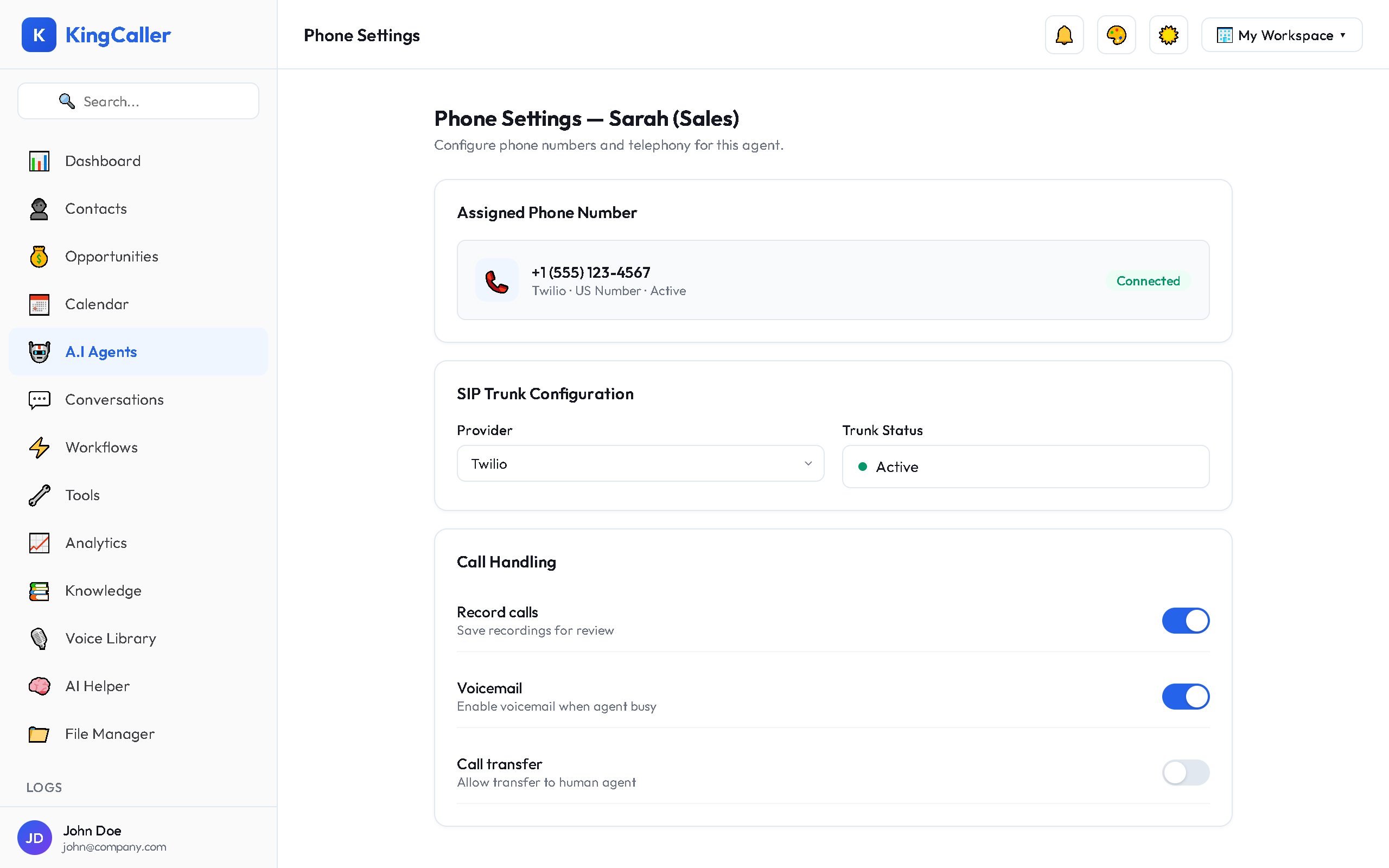
Number Types
| Type | Best For |
|---|---|
| Local | Regional presence, lower cost |
| Toll-Free | National reach (1-800, 1-888) |
| Mobile | SMS-enabled interactions |
Purchasing a New Number
If you need a new number:
- Click + Get New Number in the phone assignment dropdown
- Select country and area code
- Choose number type (local, toll-free, mobile)
- Complete the purchase
- The number is immediately available for assignment
app.kingcaller.ai
2Inbound Call Routing
When someone calls your assigned number, the call is routed to the AI agent. Configure how this works:
- Direct to Agent — all calls go straight to this agent
- Business Hours — route to agent during hours, voicemail after
- IVR Menu — play options before routing to the agent
Outbound Caller ID
For outbound agents, the assigned number appears as the caller ID when the agent makes calls. This is the number contacts will see and can call back.
Multiple Numbers per Agent
You can assign multiple phone numbers to a single agent. All numbers will route to the same agent. Useful for:
- Regional numbers (different area codes)
- Campaign-specific tracking numbers
- Failover and redundancy
Unassigning a Number
- Go to the agent's phone settings
- Click × next to the number to remove it
- The number returns to your available pool
Note: Unassigning a number does not delete or release the number. It remains in your workspace for reassignment.