
Customization
Edit dashboard layouts, create multiple dashboards, and export data.
Dashboard Customization
Make the dashboard your own with layout editing, multiple dashboards, and data export.
Editing Your Layout
- Click the Edit Layout button (top-right)
- The dashboard enters edit mode with handles on each widget
- Drag widgets to rearrange their position
- Resize widgets by dragging their edges or corners
- Click Save Layout to keep changes, or Discard to revert
app.kingcaller.ai
3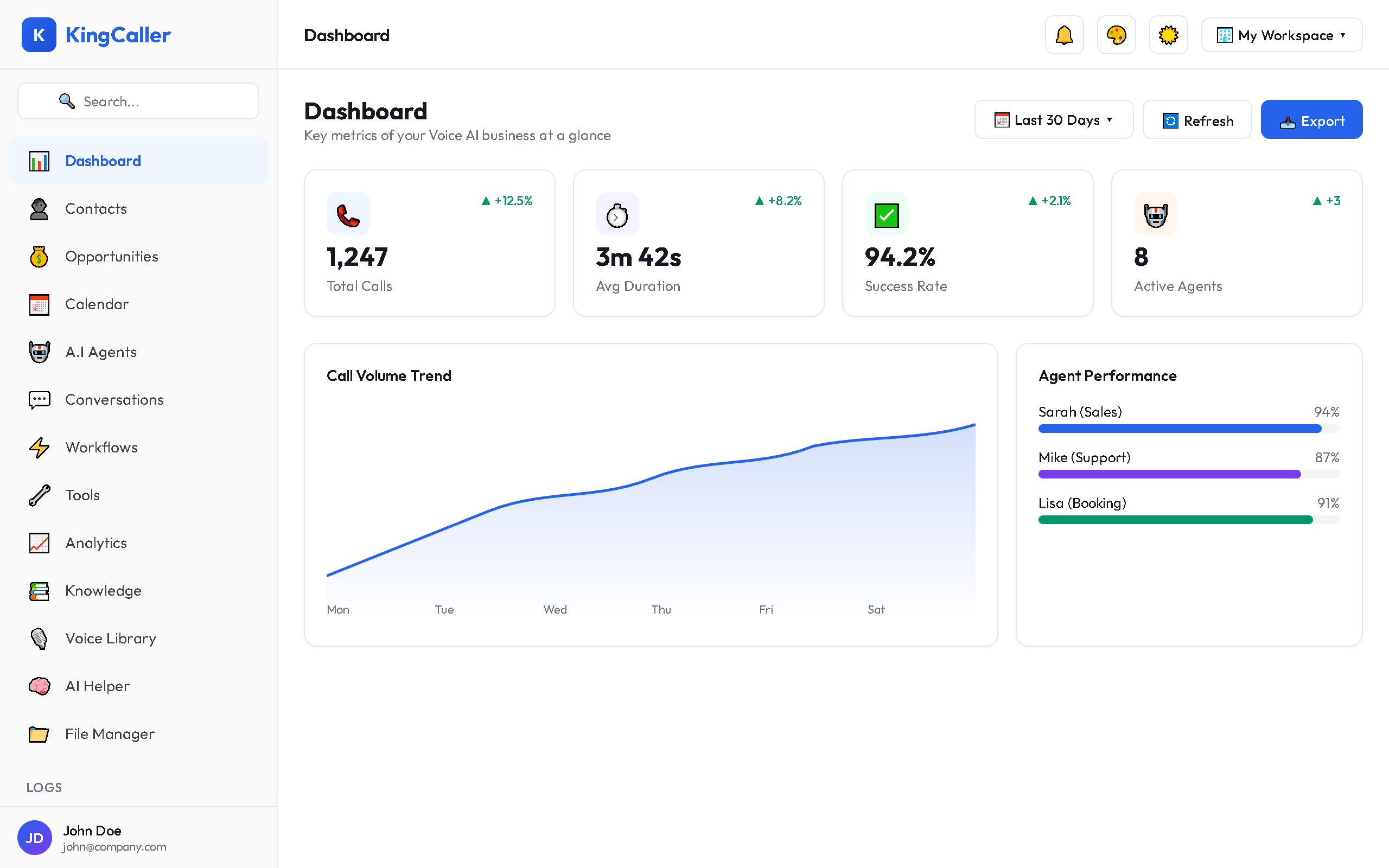
Creating Multiple Dashboards
You can create separate dashboards for different use cases:
- Click the dashboard selector dropdown (top-left)
- Click + New Dashboard
- Name your dashboard (e.g., "Sales Overview", "Support Metrics")
- Add widgets from the library
- Set a dashboard as default so it loads when you open the Dashboard page
app.kingcaller.ai
2Example Setups
| Dashboard | Suggested Widgets |
|---|---|
| Sales Overview | Call Volume, Conversion Funnel, Top Agents, Leads Generated |
| Support Metrics | Answer Rate, Avg Duration, Transfer Rate, Customer Satisfaction |
| Executive Summary | Total Calls, Success Rate, Cost, Month-over-Month Trends |
Date Range Filtering
Use the date picker to filter all dashboard data:
| Preset | Period |
|---|---|
| Last 7 Days | Previous week |
| Last 30 Days | Previous month |
| Last 6 Months | Half year view |
| Last Year | Full year view |
| All Time | Complete history |
| Custom | Pick specific start/end dates |
Exporting Data
Export your dashboard data for external analysis:
- Click the Export button (top-right)
- Choose format:
- CSV — for spreadsheets
- JSON — for programmatic use
- The file downloads with all visible widget data