
Messaging
Send and receive SMS, email, and WhatsApp messages from the unified inbox.
Messaging
Communicate with contacts across multiple channels from a single interface.
Supported Channels
| Channel | Capabilities |
|---|---|
| SMS | Send/receive text messages via Twilio |
| Send/receive emails via Gmail integration | |
| Message contacts on WhatsApp |
Sending a Message
- Open a conversation from the list (or click a contact to start a new one)
- Select the channel using the channel selector (SMS, Email, WhatsApp)
- Type your message in the compose box
- Click Send or press Enter
app.kingcaller.ai
2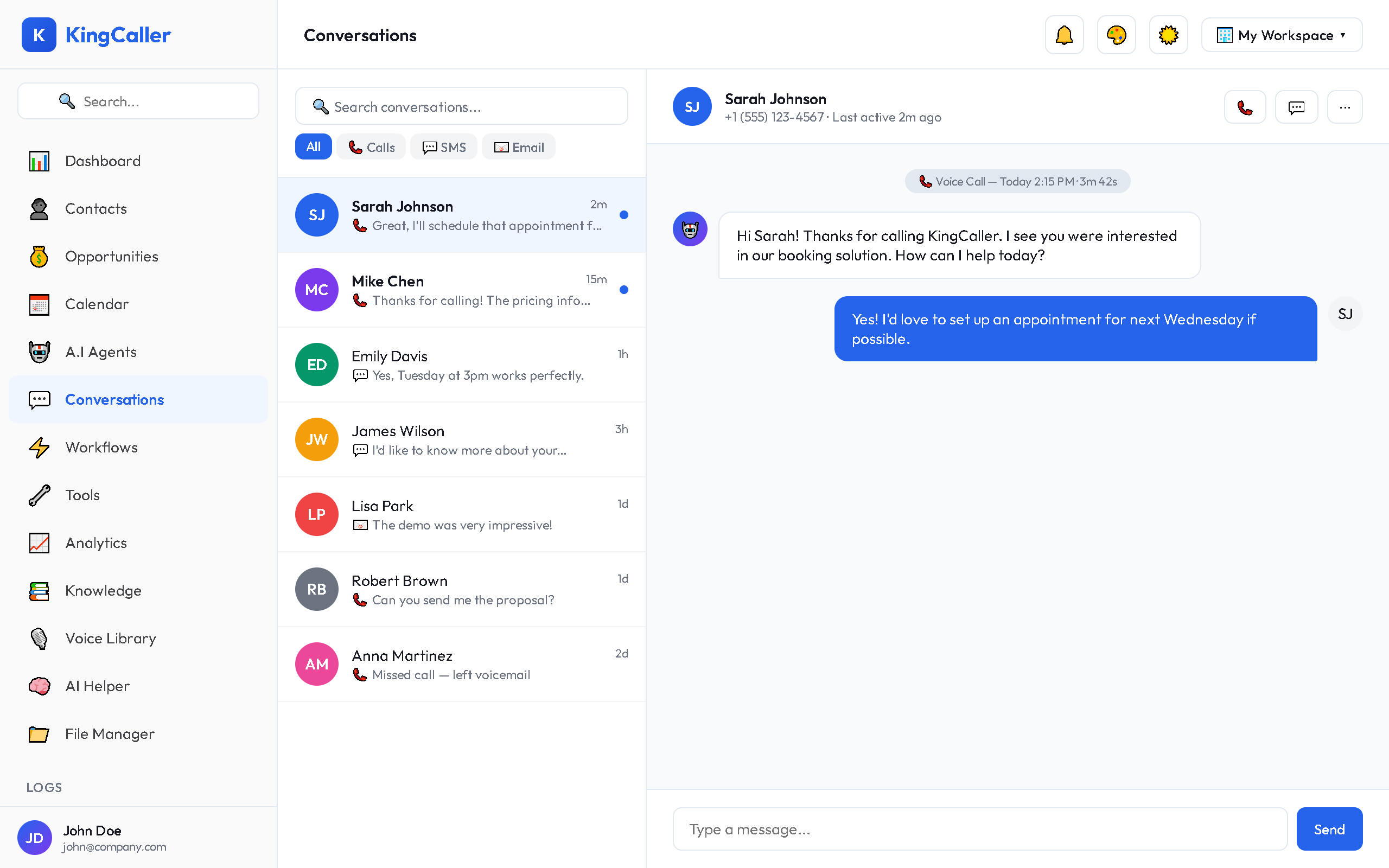
Message Formatting
- SMS: Plain text, 160 character segments
- Email: Rich text with formatting, subject line, attachments
- WhatsApp: Text, images, documents
Conversation Timeline
All messages from all channels appear in a single chronological timeline:
- SMS messages show with a phone icon
- Emails show with an envelope icon
- Call recordings show with a play button
- AI agent transcripts show inline
app.kingcaller.ai
Starring Conversations
Star important conversations for quick access:
- Hover over a conversation in the list
- Click the ★ star icon
- Access starred conversations from the Starred tab
Searching Conversations
Use the search bar at the top of the conversation list to find:
- Contact name
- Phone number
- Message content keywords