
Import & Export
Import contacts from CSV files with field mapping, and export contacts for external use.
Import & Export
Importing Contacts from CSV
Step-by-Step Import
- Click Import in the Contacts toolbar
- Upload your CSV file
- The field mapping dialog appears — map your CSV columns to KC360 fields:
app.kingcaller.ai
2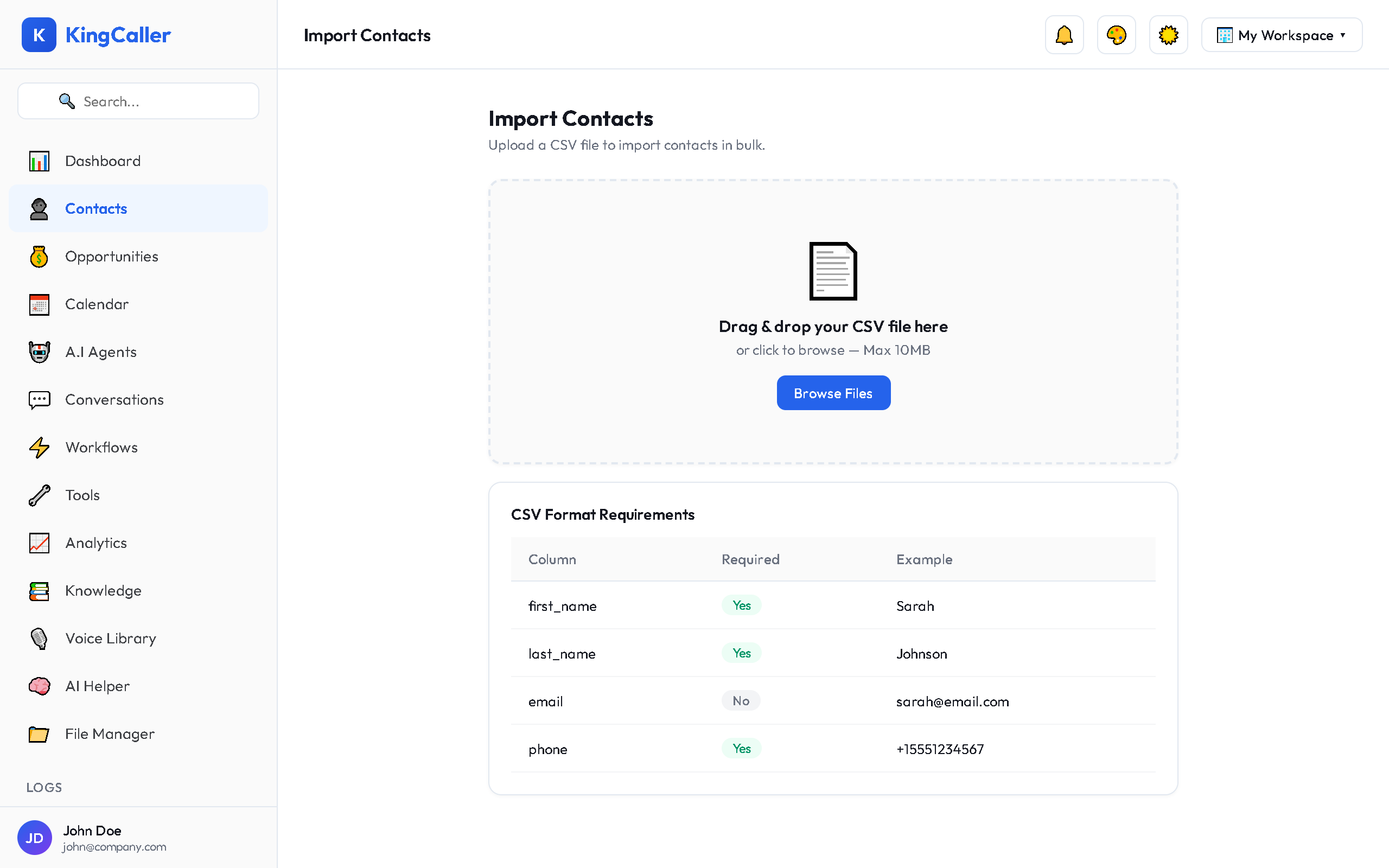
| Your CSV Column | Maps To |
|---|---|
| "Full Name" | → First Name + Last Name |
| "Email Address" | |
| "Phone" | → Phone Number |
| "Category" | → Tags |
- Review the mapping preview
- Click Import to begin
app.kingcaller.ai
4Import Tips
- File format: CSV files only (
.csv) - Required fields: At least a name or email
- Duplicates: Contacts with matching email/phone will be flagged
- Encoding: Use UTF-8 for international characters
- Max rows: Up to 10,000 contacts per import
Handling Errors
If some rows fail to import:
- You'll see a summary showing successful vs failed rows
- Download the error report to see which rows had issues
- Fix the CSV and re-import the failed rows
Exporting Contacts
Export All
- Click Export in the Contacts toolbar
- Choose to export all contacts or selected contacts
- A CSV file downloads with all contact fields
Export Selected
- Select specific contacts using checkboxes
- Click Export Selected in the bulk action bar
- Only selected contacts are included in the download
Export Fields
The exported CSV includes:
- Name, Email, Phone
- Tags (comma-separated)
- Source
- Created date
- Last activity date
- Any custom fields