
Appointments
Create, edit, and manage appointments and events on your calendar.
Appointments
Creating an Appointment
- Click on a time slot in the calendar, or click + New Appointment
- Fill in the details:
- Title — appointment name
- Date & Time — start and end time
- Contact — associate with a contact (optional)
- Description — notes or meeting details
- Status — confirmed, tentative, cancelled
- Click Save
app.kingcaller.ai
2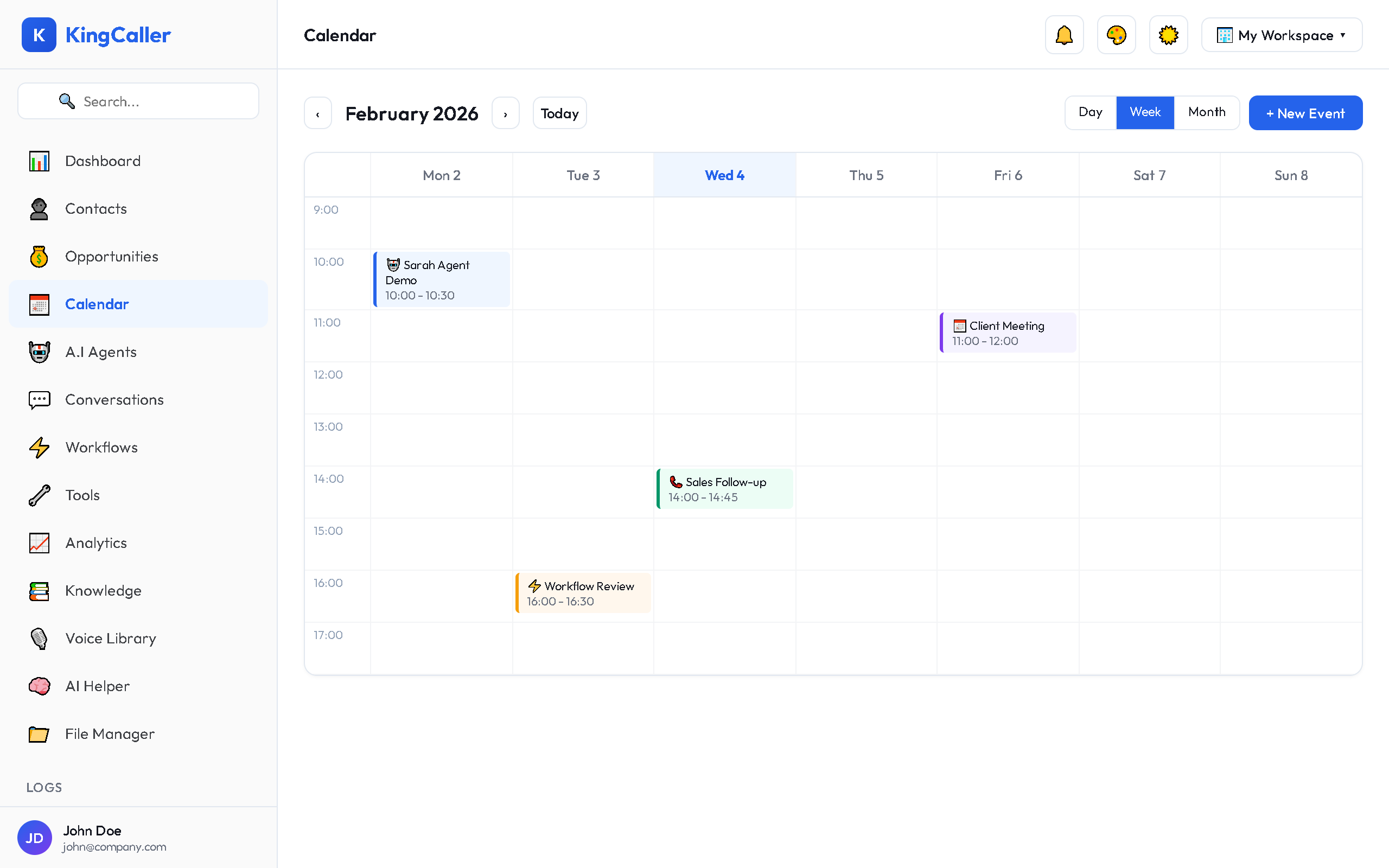
Editing an Appointment
- Click on any appointment in the calendar
- The event details modal opens
- Update any field
- Click Save Changes
Appointment Statuses
| Status | Meaning |
|---|---|
| Confirmed | Appointment is locked in |
| Tentative | Pending confirmation |
| Cancelled | Appointment was cancelled |
| Completed | Appointment has occurred |
| No-Show | Contact didn't attend |
Managing Appointments
From the Calendar
- Click any event to view details
- Drag events to reschedule (in week/day views)
- Right-click for quick actions (edit, delete, change status)
app.kingcaller.ai
From Agenda / List View
- See all appointments in a sortable list
- Filter by status, date range, or contact
- Bulk actions on selected appointments
Calendar Settings
Click the ⚙️ Settings icon to configure:
- Default view — which view loads when you open Calendar
- Business hours — highlight your working hours
- Time zone — your workspace default timezone
- Week start day — Monday or Sunday