
File Operations
Upload, organize, share, and manage files and folders in the File Manager.
File Operations
Uploading Files
Drag & Drop
- Open the folder where you want to upload
- Drag files from your computer onto the File Manager area
- A progress indicator shows upload status
app.kingcaller.ai
2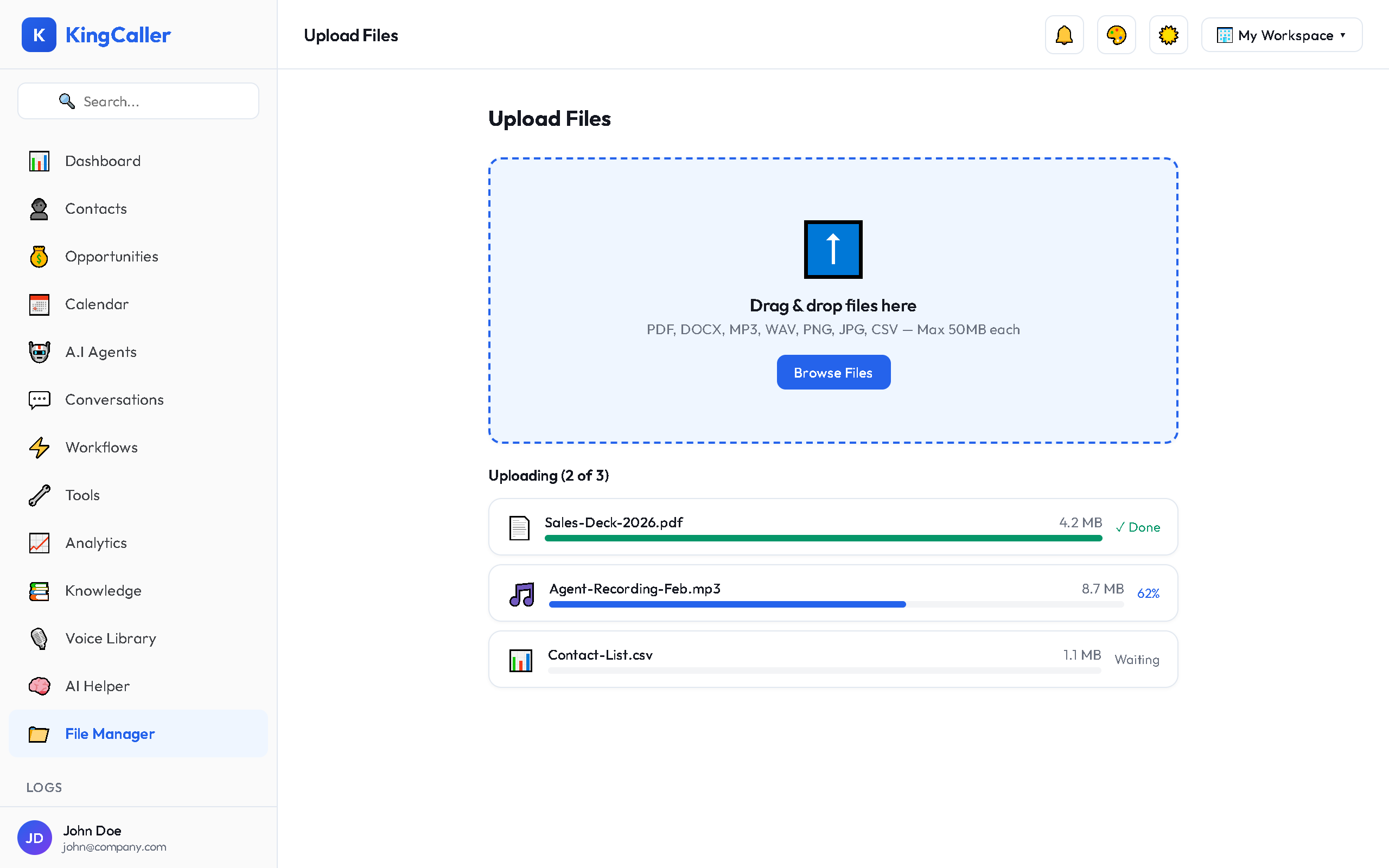
Click to Upload
- Click the Upload button
- Select files from the file picker
- Files upload with progress tracking
Supported File Types
- Documents: PDF, DOCX, TXT, CSV
- Audio: MP3, WAV, M4A (voice recordings)
- Images: PNG, JPG, SVG, GIF
- Data: JSON, XML
Creating Folders
- Click + New Folder
- Enter a folder name
- The folder appears in the current directory
Viewing Files
Grid View
- Shows file thumbnails and icons
- Click to preview, double-click to open
List View
- Compact table with name, size, date, type columns
- Sortable by any column
Toggle between views using the Grid/List icons in the toolbar.
Moving & Copying Files
- Select one or more files (click or use checkboxes)
- Right-click or use the toolbar menu
- Choose Move to… or Copy to…
- Select the destination folder
- Confirm the action
Sharing Files
- Right-click a file → Share
- A shareable link is generated
- Copy the link to share with anyone
Voice Preview
For audio files (MP3, WAV, M4A):
- Click the audio file
- A preview drawer opens at the bottom
- Play/pause the recording
- Seek through the audio
- See file details (duration, size, format)
app.kingcaller.ai
2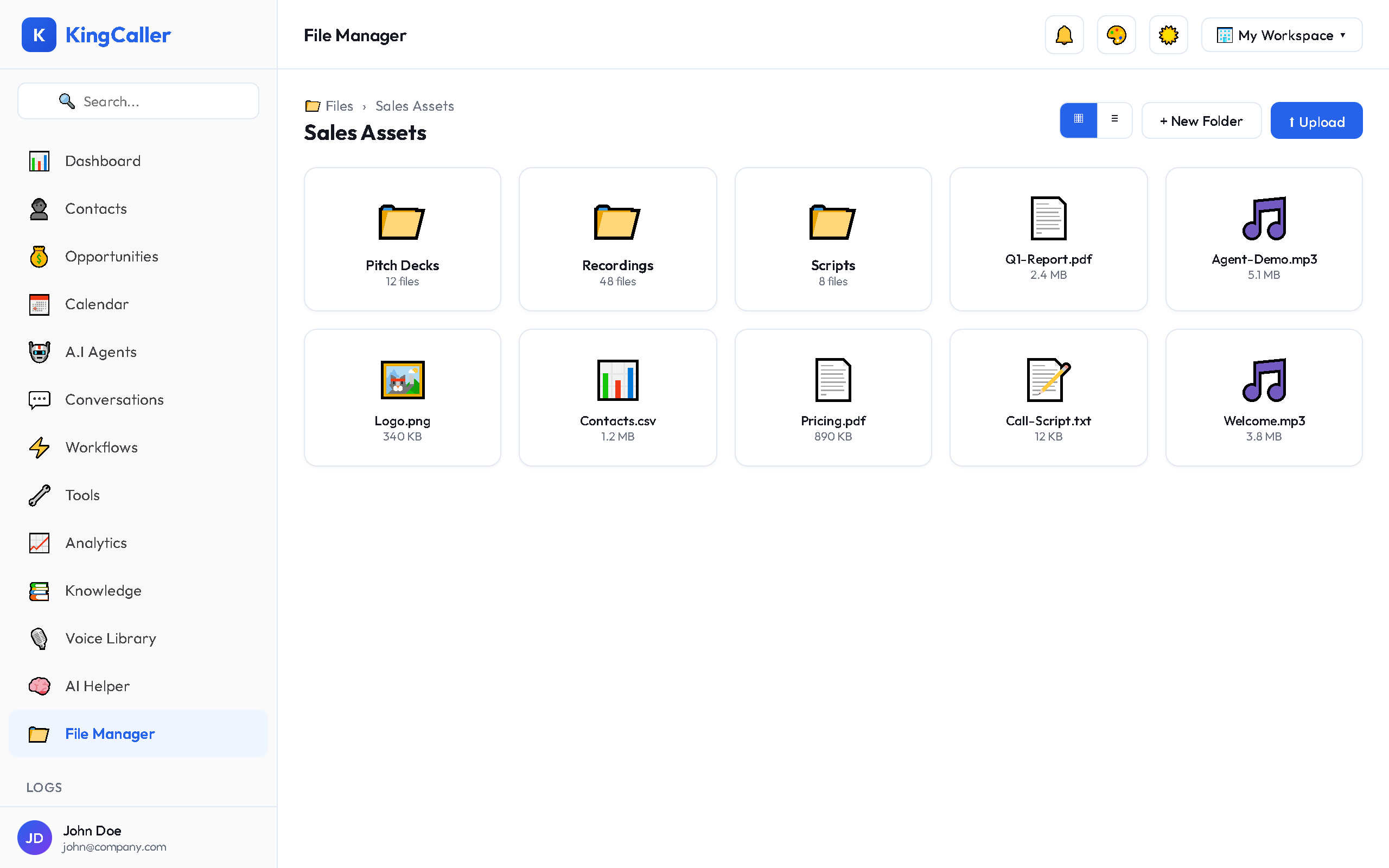
Trash & Restore
Deleted files go to Trash before permanent deletion:
- Select files → click Delete
- Files move to the Trash folder
- Go to Trash to view deleted files
- Click Restore to recover files
- Or Permanently Delete to remove forever
Note: Trash is automatically emptied after 30 days.