
Workflow Logs
Track workflow automation execution, step results, and error details.
Workflow Logs
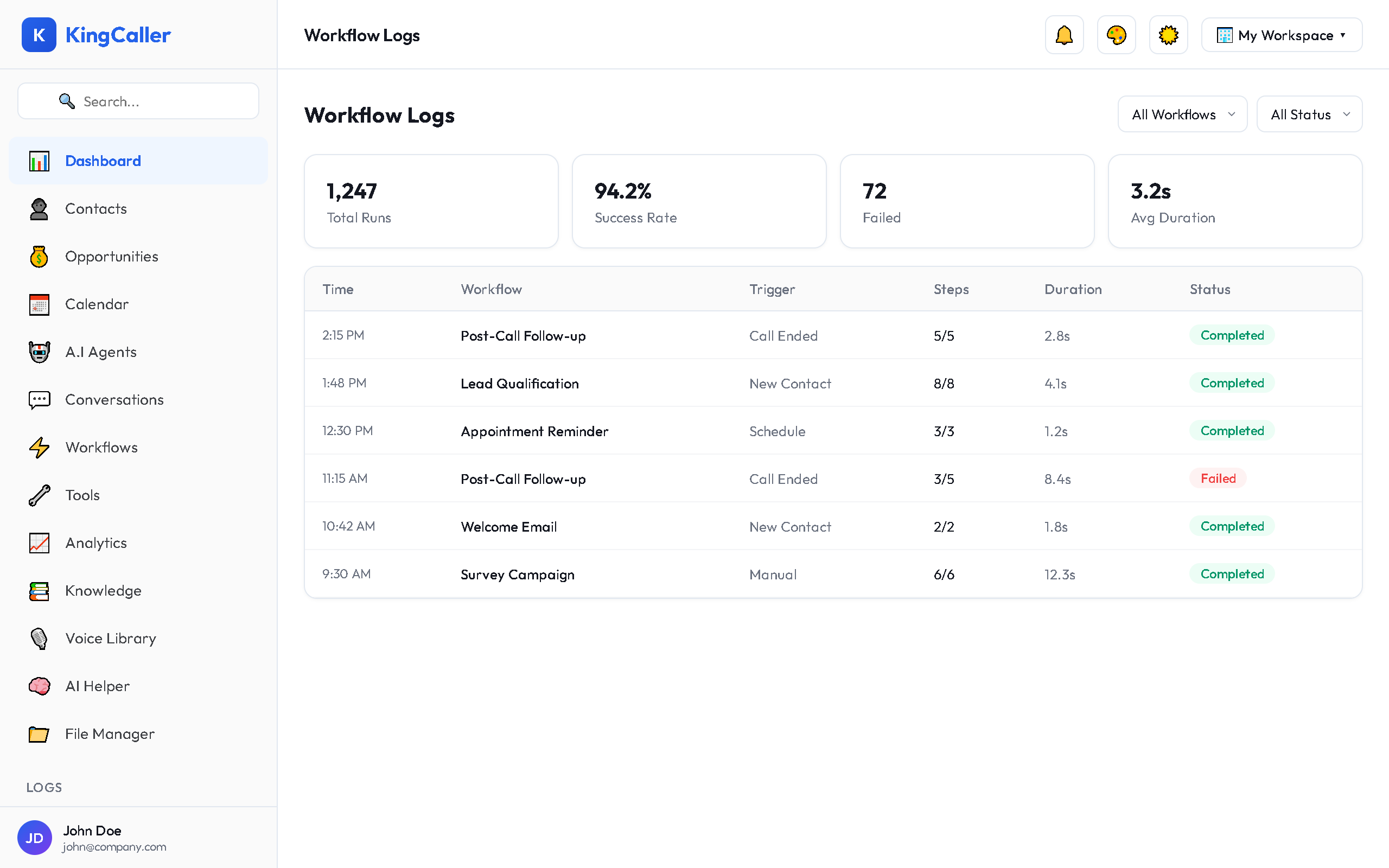
Workflow Logs show the execution history of your automated workflows, including each step's result.
Accessing Workflow Logs
Navigate to Logs → Workflow Logs
Log Entry Details
| Field | Description |
|---|---|
| Timestamp | When the workflow ran |
| Workflow Name | Which workflow was triggered |
| Trigger | What started the workflow |
| Status | Completed, Failed, In Progress |
| Duration | Total execution time |
| Steps | Number of steps executed |
Execution Detail View
Click any log entry to see the step-by-step execution:
app.kingcaller.ai
- Step 1: Trigger — what event started the workflow
- Step 2: Action — first action taken (e.g., "Send SMS")
- Input: data passed to the step
- Output: result returned
- Status: success ✅ or failed ❌
- Step 3: Condition — branch evaluation
- Which path was taken
- Step 4: Action — next action...
- And so on for each step
Filtering
| Filter | Options |
|---|---|
| Workflow | Specific workflow or all |
| Status | Completed, Failed, In Progress |
| Date range | Time period |
| Trigger type | Event type that started the workflow |
Troubleshooting Failed Workflows
When a workflow fails:
- Click the failed log entry
- Find the step with the ❌ error
- Check the error message — it describes what went wrong
- Common issues:
- Missing data — a required field was empty
- API error — external service returned an error
- Credential expired — update credentials in the Vault
- Timeout — step took too long
- Fix the issue in the Workflow editor
- Re-test by triggering the workflow manually
Stats Summary
At the top of the log view:
- Total Runs — number of workflow executions
- Success Rate — % completed successfully
- Failed — number of failed runs
- Avg Duration — average execution time
app.kingcaller.ai