
Testing Your Agent
Test your AI agent with preview mode and real phone calls before going live.
Testing Your Agent
Always test your agent before activating it for production calls.
Test Call Panel
- Open your agent in the Agent Builder
- Click the Test button (phone icon)
- The test call panel opens
- Initiate a test call — the system calls you and connects you to your agent
- Have a conversation as if you were a real caller
app.kingcaller.ai
2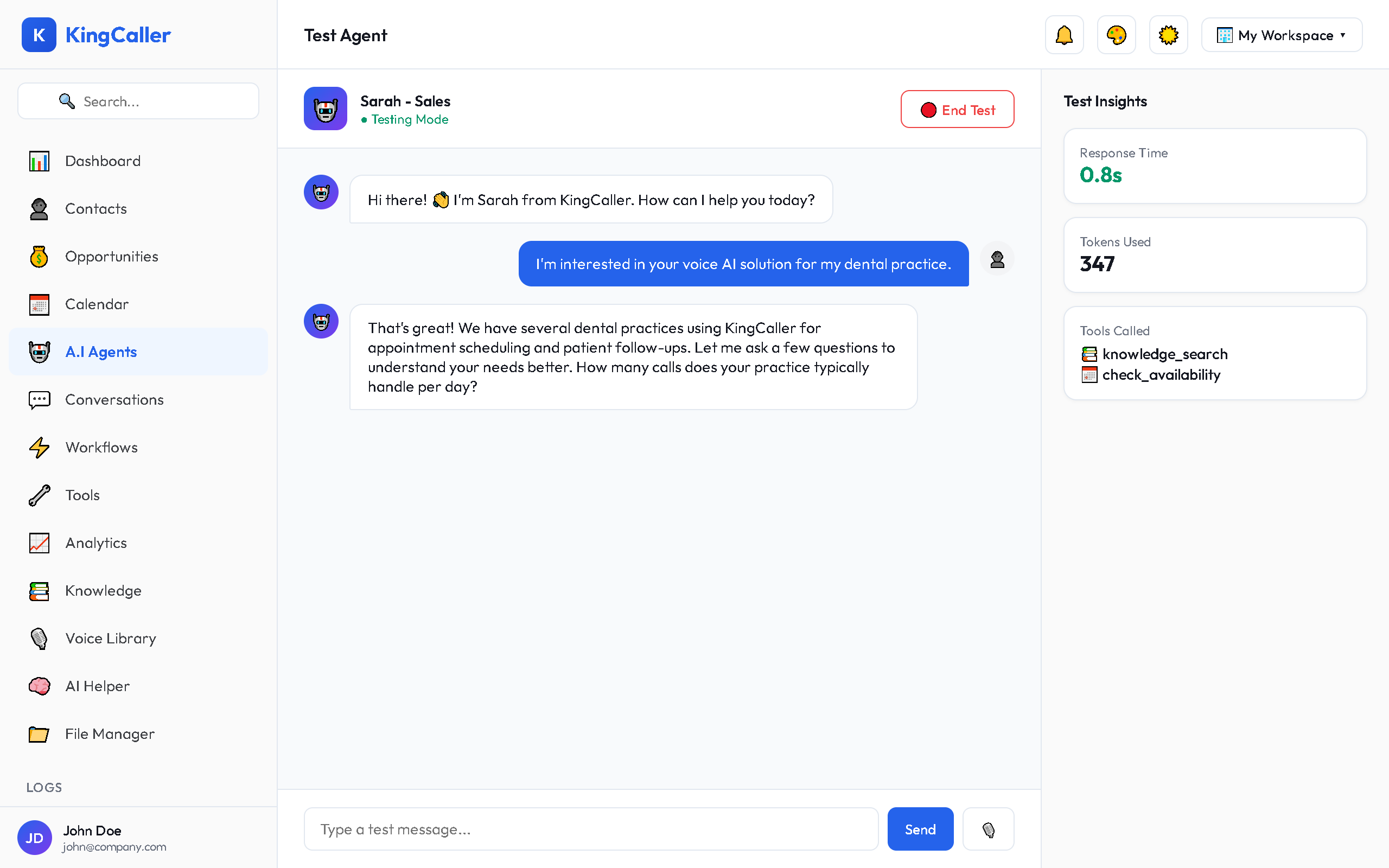
What to Test
| Scenario | What to Verify |
|---|---|
| Greeting | Agent introduces itself correctly |
| Common questions | Answers are accurate from knowledge base |
| Edge cases | Unusual requests handled gracefully |
| Transfer triggers | Agent escalates when it should |
| Appointment booking | Calendar integration works |
| Interruptions | Agent handles being interrupted naturally |
| Ending the call | Graceful goodbye and follow-up actions |
Reviewing Test Results
After a test call:
- Call recording is available for playback
- Transcript shows the full conversation
- Agent performance metrics (response time, accuracy)
- Call summary auto-generated
app.kingcaller.ai
Activating Your Agent
Once testing is satisfactory:
- Return to the A.I Agents list
- Find your agent
- Toggle the Active switch to ON
- Your agent is now live and will handle real calls
app.kingcaller.ai
3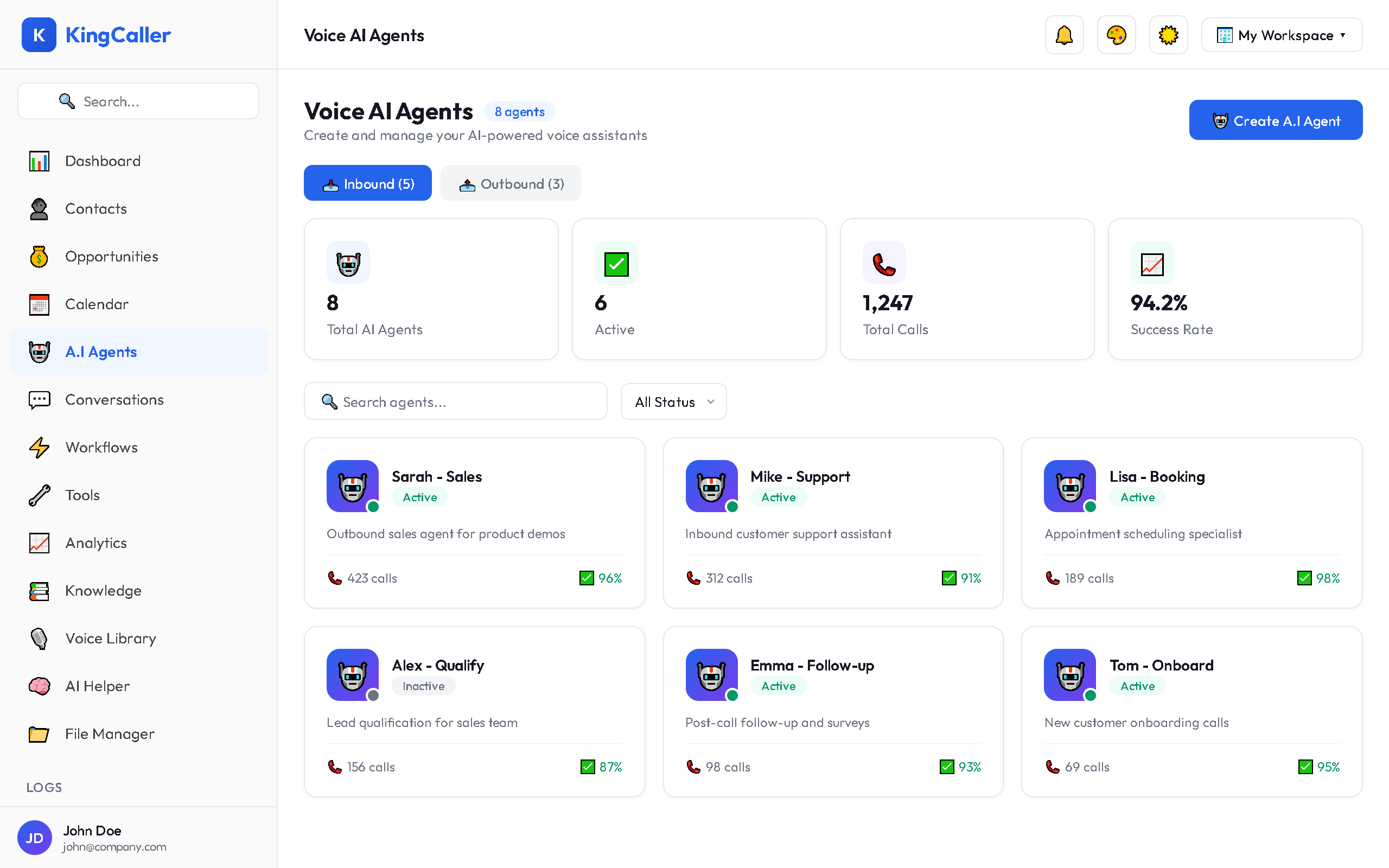
Deactivating
Toggle the switch to OFF at any time. Calls to the assigned number will go to voicemail or your fallback routing.
Tips for Effective Testing
- Test with multiple scenarios — don't just test the happy path
- Test interruptions — start talking while the agent is speaking
- Test silence — pause for 10+ seconds to see how the agent prompts
- Test from a real phone (not just the web interface) to verify voice quality
- Have team members test independently for fresh perspectives