
LaunchPad
Your guided onboarding wizard — complete setup steps to get your KC360 workspace fully operational.
LaunchPad
The LaunchPad is your onboarding command center. It appears when you first sign in and guides you through every step needed to get your workspace up and running. A progress bar at the top tracks your completion status in real time.
Setup Steps
The LaunchPad presents 6 onboarding cards in a grid layout. Each card represents a critical setup step:
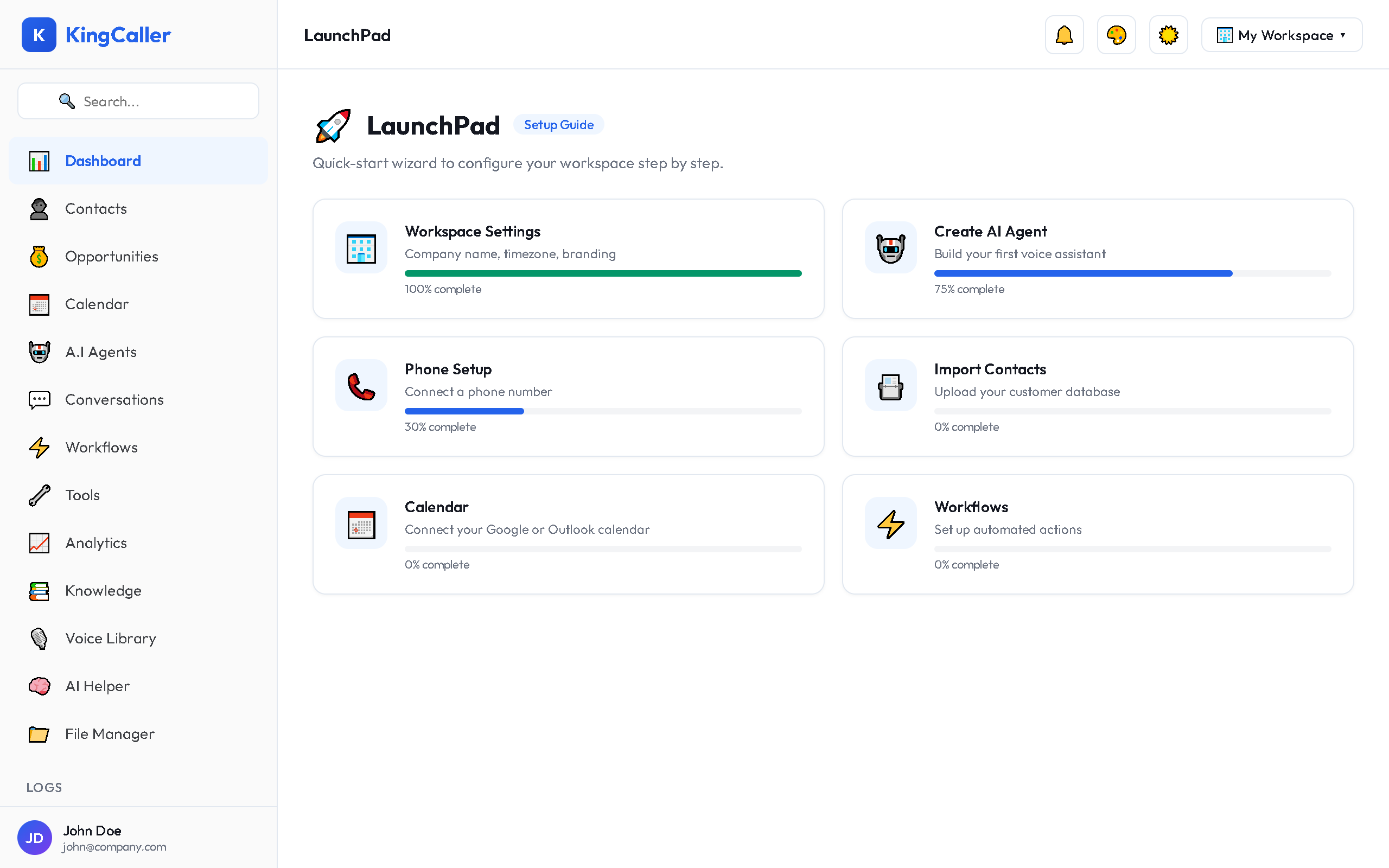
| Step | What It Does | Links To |
|---|---|---|
| Create First AI Assistant | Build your first voice AI agent | A.I Agents |
| Import Contacts | Add your contacts via CSV or manually | Contacts |
| Get a Phone Number | Purchase or port a phone number | A.I Agents → Phone Settings |
| Build First Workflow | Create an automation workflow | Workflows |
| Set Up Analytics | Configure your analytics dashboard | Analytics |
| Configure Team Settings | Invite team members and set permissions | Workspace Settings |
How Progress Tracking Works
- The LaunchPad checks your database every 30 seconds to auto-detect completed steps
- Steps turn green with a checkmark once the system detects you've completed them (e.g., created a bot, imported contacts)
- Your overall progress percentage is shown at the top
- Once all 6 steps are complete, the LaunchPad hides automatically
Quick Actions
At the bottom of the LaunchPad, you'll find shortcut buttons:
- Go to Dashboard — jump straight to your analytics dashboard
- Go to Settings — open workspace configuration
Returning to LaunchPad
If you navigated away before finishing setup, click LaunchPad in the sidebar to return. It will remember your progress and show remaining steps.
Tip: You don't have to complete steps in order. Jump to whichever setup task is most important for your business first.