
Webhook Logs
Monitor webhook delivery status, payloads, and response codes.
Webhook Logs
Webhook Logs track all HTTP webhook deliveries sent from KC360 to external services.
Accessing Webhook Logs
Navigate to Logs → Webhook Logs
app.kingcaller.ai
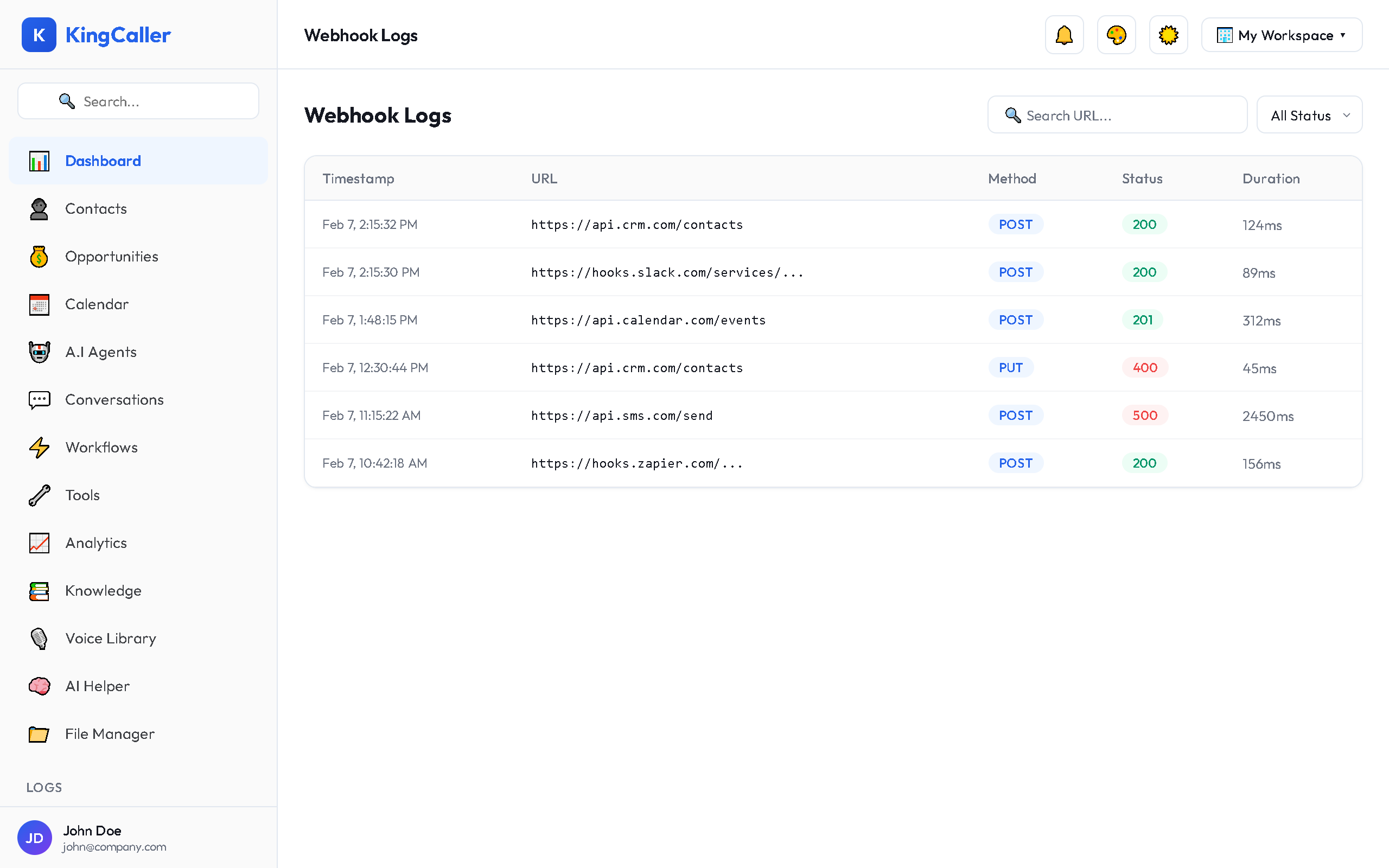
Log Entry Details
| Field | Description |
|---|---|
| Timestamp | When the webhook was sent |
| URL | The destination URL |
| Method | HTTP method (POST, GET, etc.) |
| Status Code | Response status (200, 400, 500, etc.) |
| Duration | Round-trip time |
| Payload | Request body sent |
| Response | Response body received |
Status Indicators
| Status | Meaning |
|---|---|
| ✅ Success (2xx) | Webhook delivered successfully |
| ⚠️ Client Error (4xx) | Bad request — check payload format |
| ❌ Server Error (5xx) | Destination server error — may retry |
| ⏱️ Timeout | No response within timeout period |
Filtering
| Filter | Options |
|---|---|
| Status | Success, Error, Timeout, All |
| URL | Specific webhook destination |
| Date range | Time period |
Debugging Failed Webhooks
When a webhook fails:
- Click the log entry to see full details
- Check the request payload — is it formatted correctly?
- Check the response body — the external service may explain the error
app.kingcaller.ai
1- Check the status code — 401 means auth issue, 404 means wrong URL 5. Check the URL — ensure it's correct and the service is running 6. Retry — some webhook types have a manual retry button